Large fillets and chamfers no longer stop at a short side face: they keep the size you enter, and crossings with earlier finishes and holes are worked out for you.
Before & after
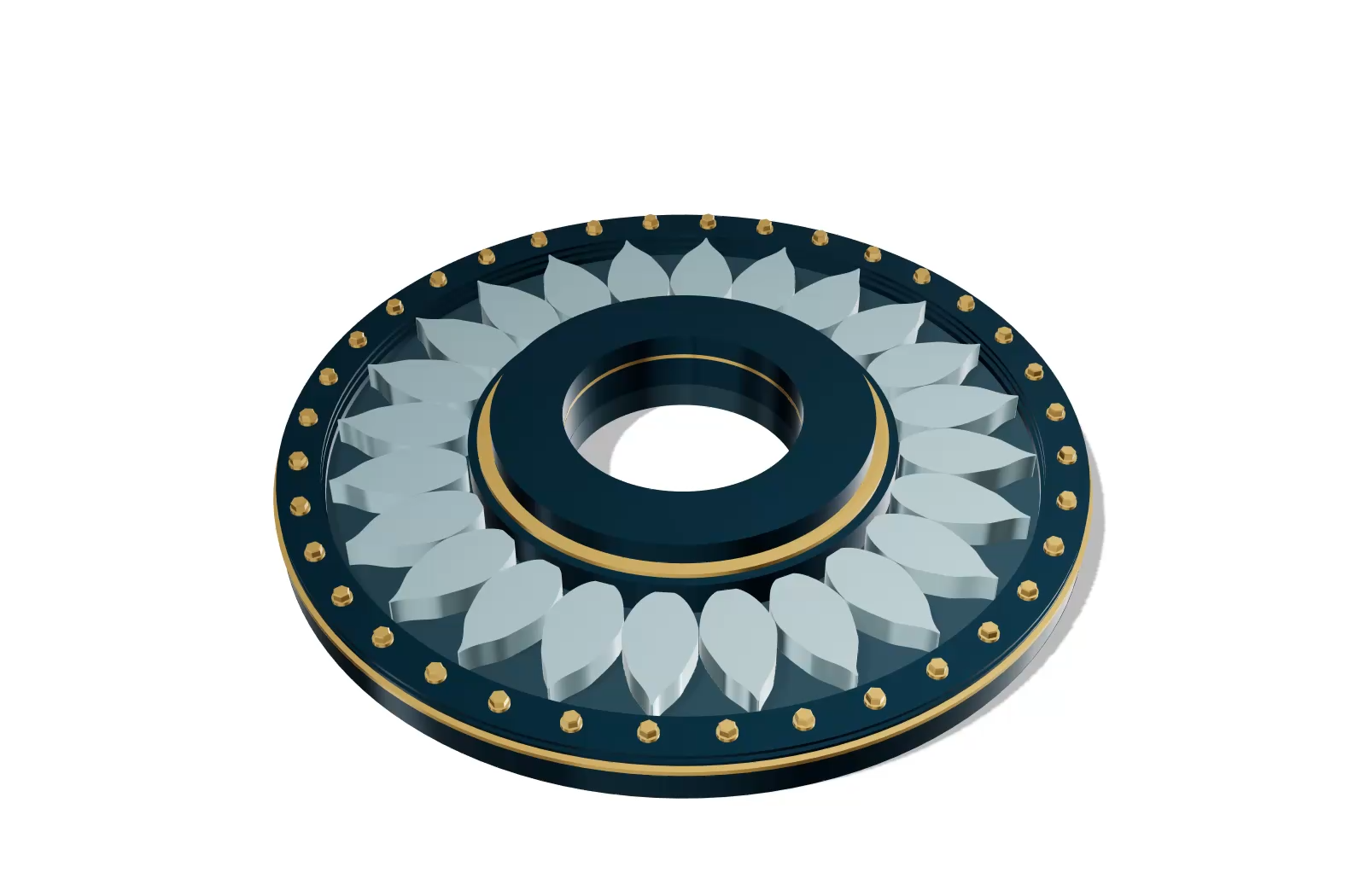
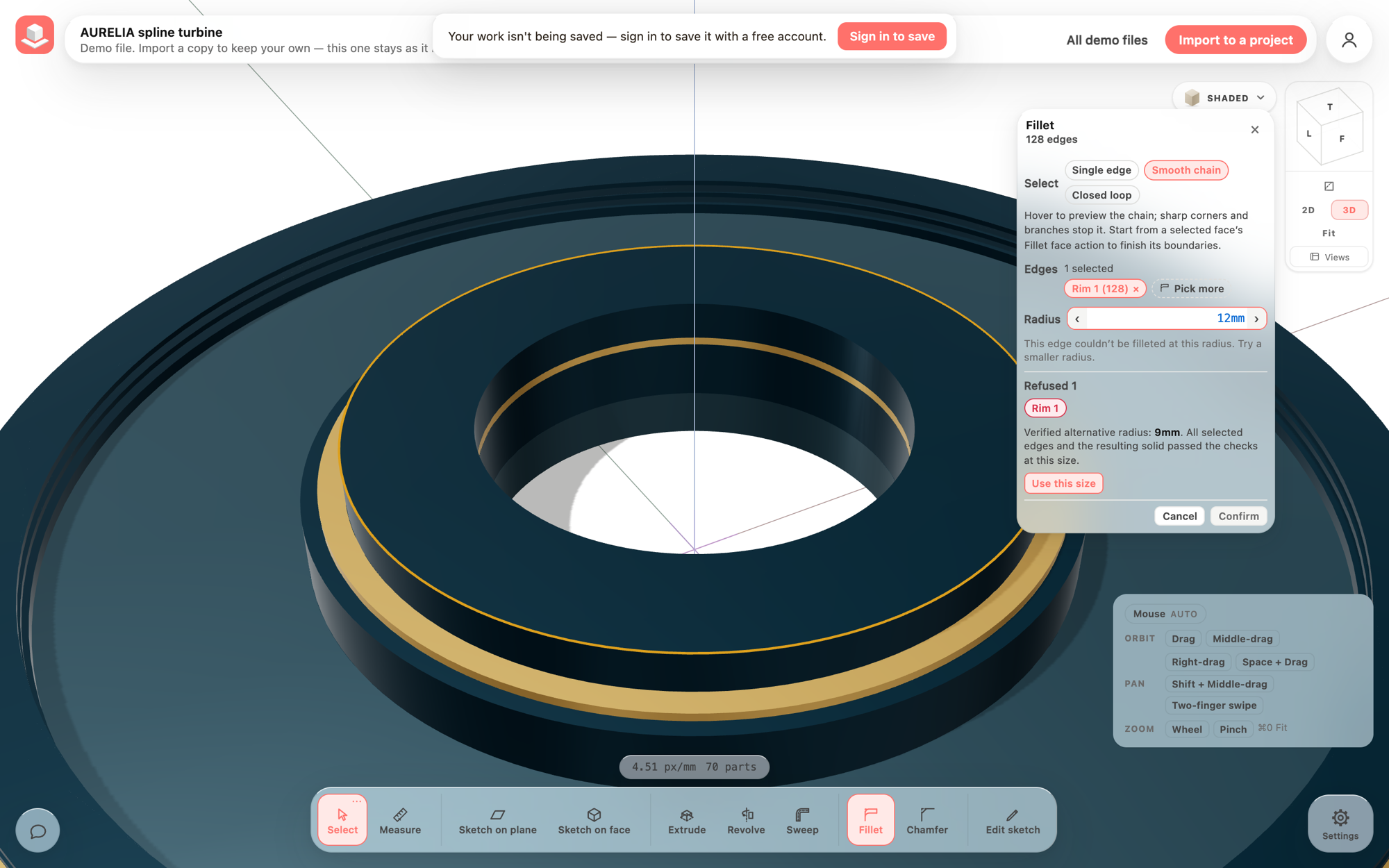
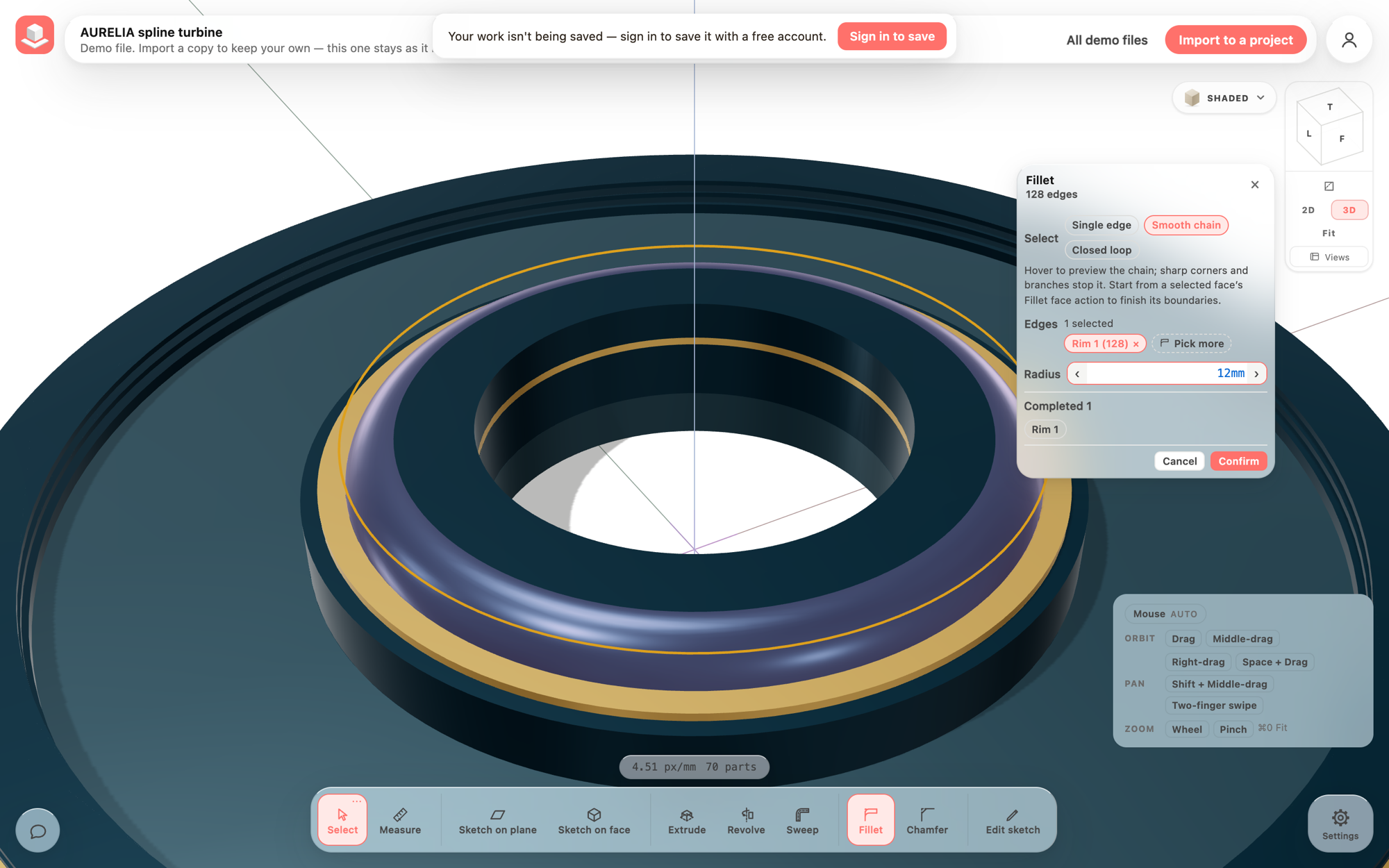
The collar rim keeps the 12 mm you enter
BeforeAfter‹ ›
Before, 12 mm on the 10 mm-tall collar was refused and 9 mm was offered. Now it completes at 12 mm.Drag to compare · arrow keys work too
Fillets and chamfers on square outer corners and circular rims keep the size you enter, even when it is taller than the side face beside the edge. The finish uses up that face and ends with a sharp edge at the next one, where it used to be refused or shrunk.
Large finishes that run into earlier fillets, chamfers or holes on the same part meet them in a sharp crease, in either order. On the Aurelia turbine's raised collar, a 12 mm outer rim, a 25 mm inner rim and a 5 mm bottom rim now shape the collar into one rolled ring.
The Fillet and Chamfer cards say when a finish removes the whole named part or splits it into pieces. Confirm stays available, every remaining piece is kept, and Undo restores the part. Finishing one part never changes any other part.
Inside seams across earlier rounds, blind-hole bottoms and edges ending in inside corners now finish at the size you ask for, with clearer results on the Fillet and Chamfer cards.
Before & after
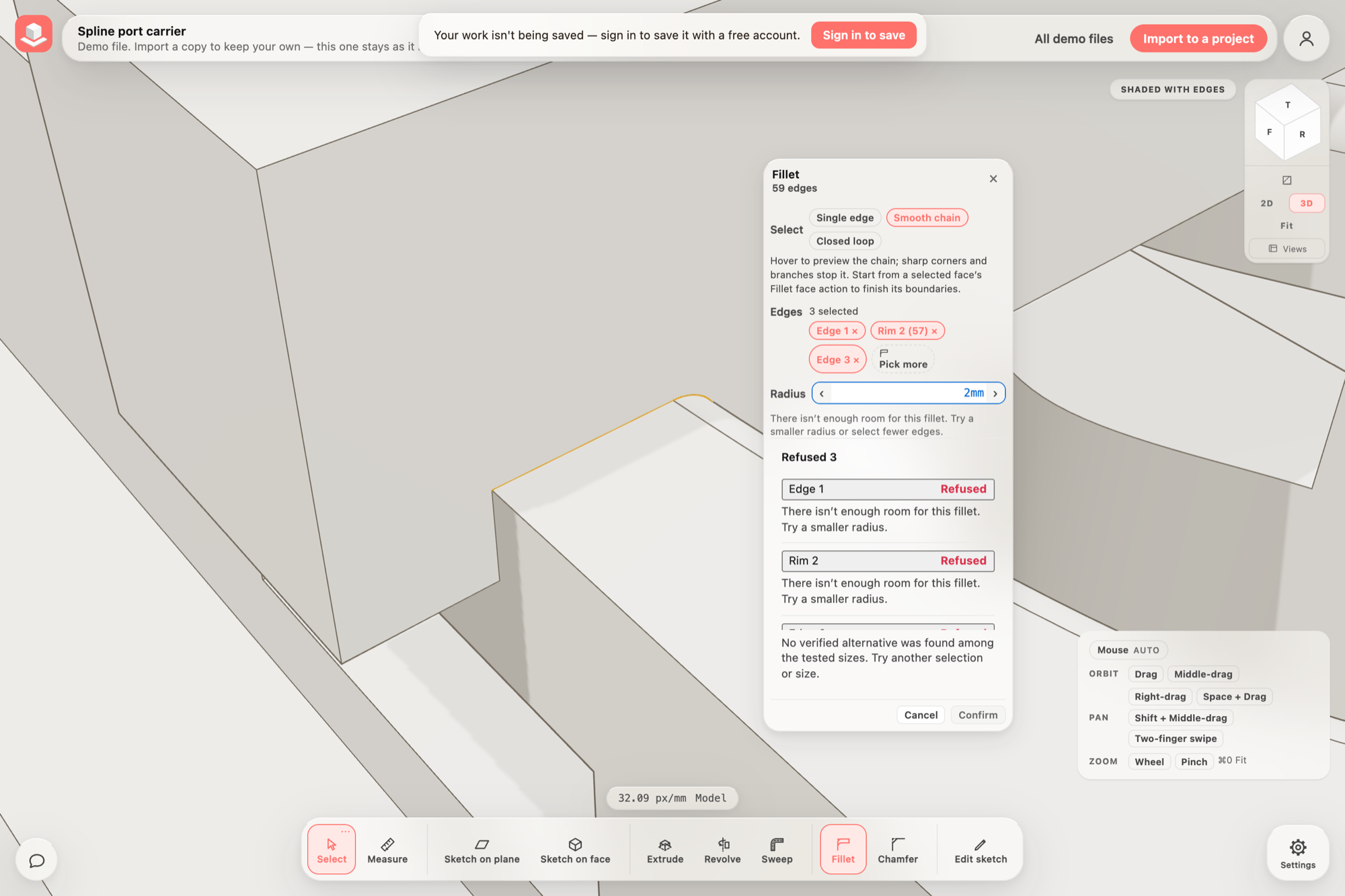
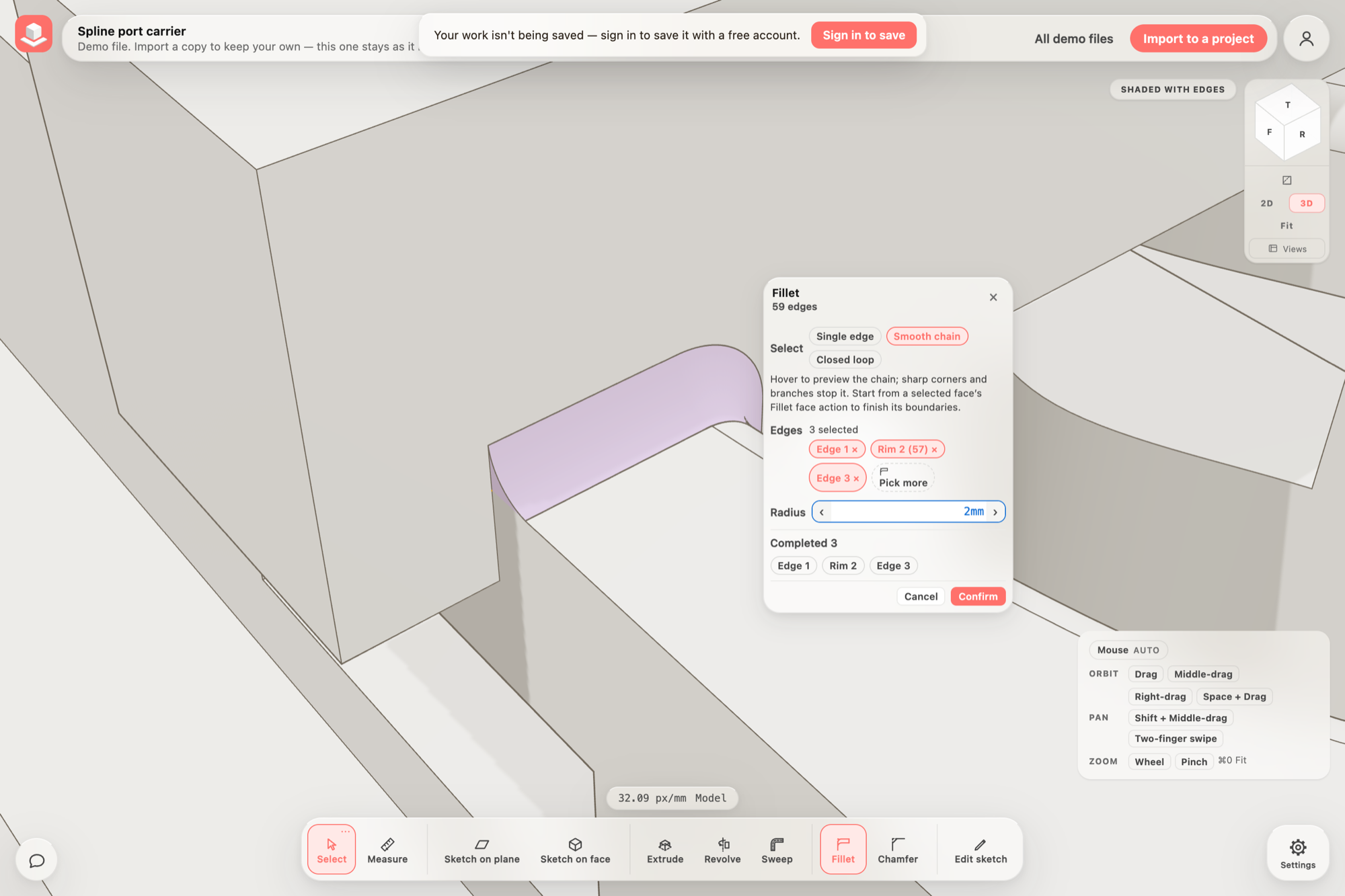
The same R2 fillet, refused and finished
The inside seam where the Spline port carrier's overhead bridge meets the casting, picked as Edge 1, Rim 2 and Edge 3 with Smooth chain.
BeforeAfter‹ ›
Same demo part, camera and selection. The round now follows the seam across the earlier window round at the full 2 mm.Drag to compare · arrow keys work too
The Spline flow housing demo opens without a problem on its turret drilling. Some faces with a round hole lined up exactly with another opening's straight edge were rejected by the final surface check.
Filleting a bore together with a nearby cutout across a thin wall now reduces the radius where the wall is thin and says so, instead of refusing with a message to finish the bores first.
Fillet the inside seam where a flat face meets a curved surface, such as a bridge standing across a rounded window, at the full requested radius, stopping flush with the faces at each end. These selections were refused, or finished at a tiny fraction of the radius, before.
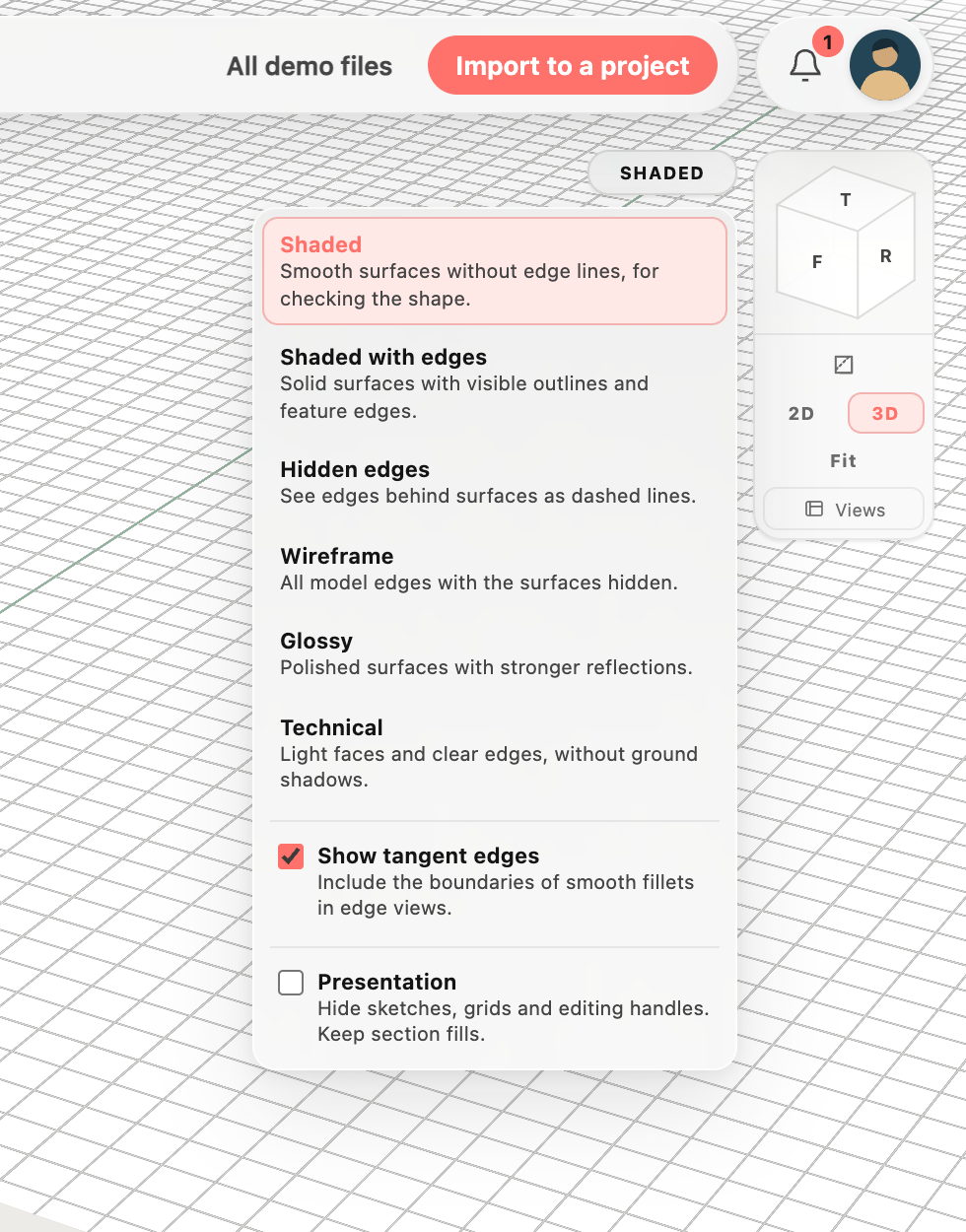
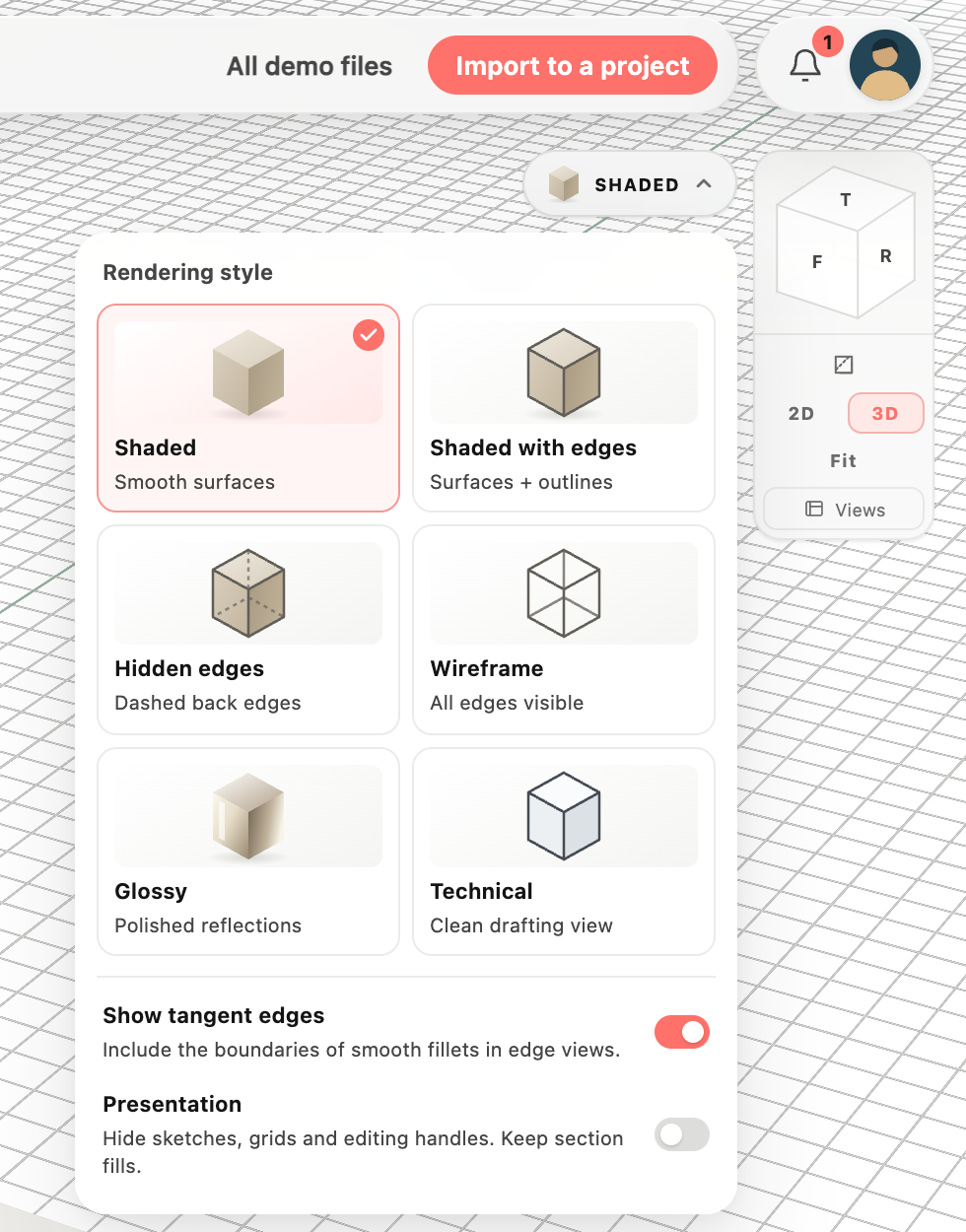
Compare rendering styles at a glance and enjoy cleaner account controls on desktop and mobile.
Before & after
See each style before choosing
BeforeAfter‹ ›
Compare the same sample cube across six rendering styles. Larger previews sit side by side, the selected style has a checkmark, and display switches stay together below.Drag to compare · arrow keys work too
Rendering options now show preview icons for Shaded, Shaded with edges, Hidden edges, Wireframe, Glossy and Technical, including the current style on the button.
Compare rendering styles side by side in a compact gallery, with larger previews, a selected-style checkmark and grouped display switches.
On phones, a compact rendering preview sits beside your account, keeping the style picker clear of the feature tree and its menu easy to read.
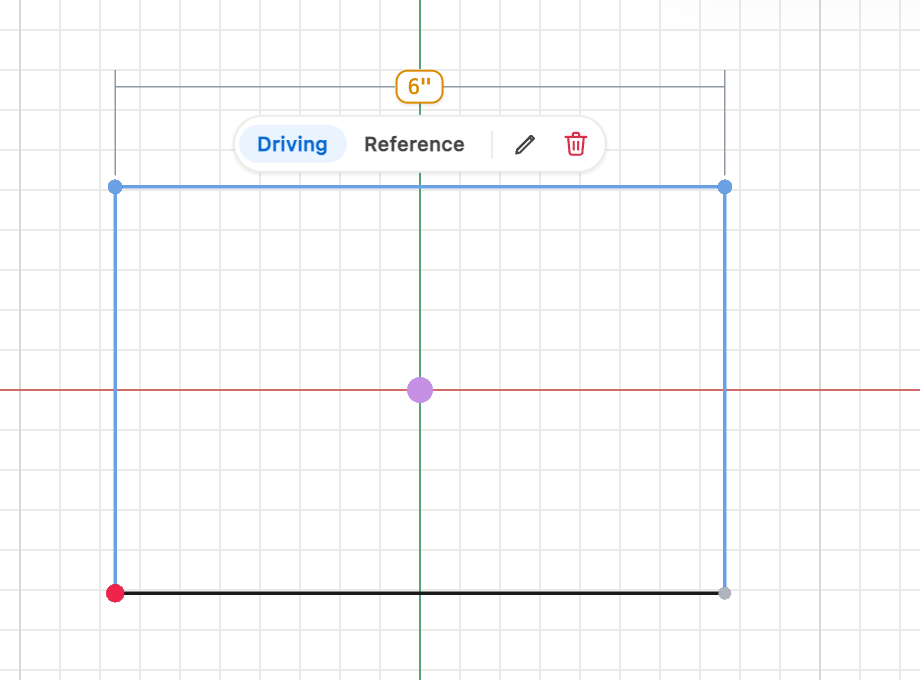
Edit values in place, confirm deletion beside the dimension, and watch the sketch resize smoothly after saving.
In motion
Edit and save in place
The pencil becomes a checkmark and the trash becomes an X. Save a new value to smoothly resize the sketch, with its dimension lines, label and controls moving together.
Selected sketch dimensions now show edit and delete icons, with an animated confirmation that requires a second click to delete.
Double-clicking a driving dimension now edits its text inside the same label, keeping its size and position instead of opening a wider field.
Editing a sketch dimension now shows animated checkmark and cancel buttons to apply or discard the value.
Find recent improvements on the home page, read new releases in your Updates inbox, and refresh for new features when your work is ready.
Find the latest release near the bottom of the home page and browse the full changelog without signing in.
Signed-in users can open Updates beside Account to read new releases, preview images and videos beside the release details, and mark individual releases or all updates read across their account.
The Updates inbox starts without an old-release backlog: existing accounts receive releases published after this launch, and new accounts receive releases published after they join.
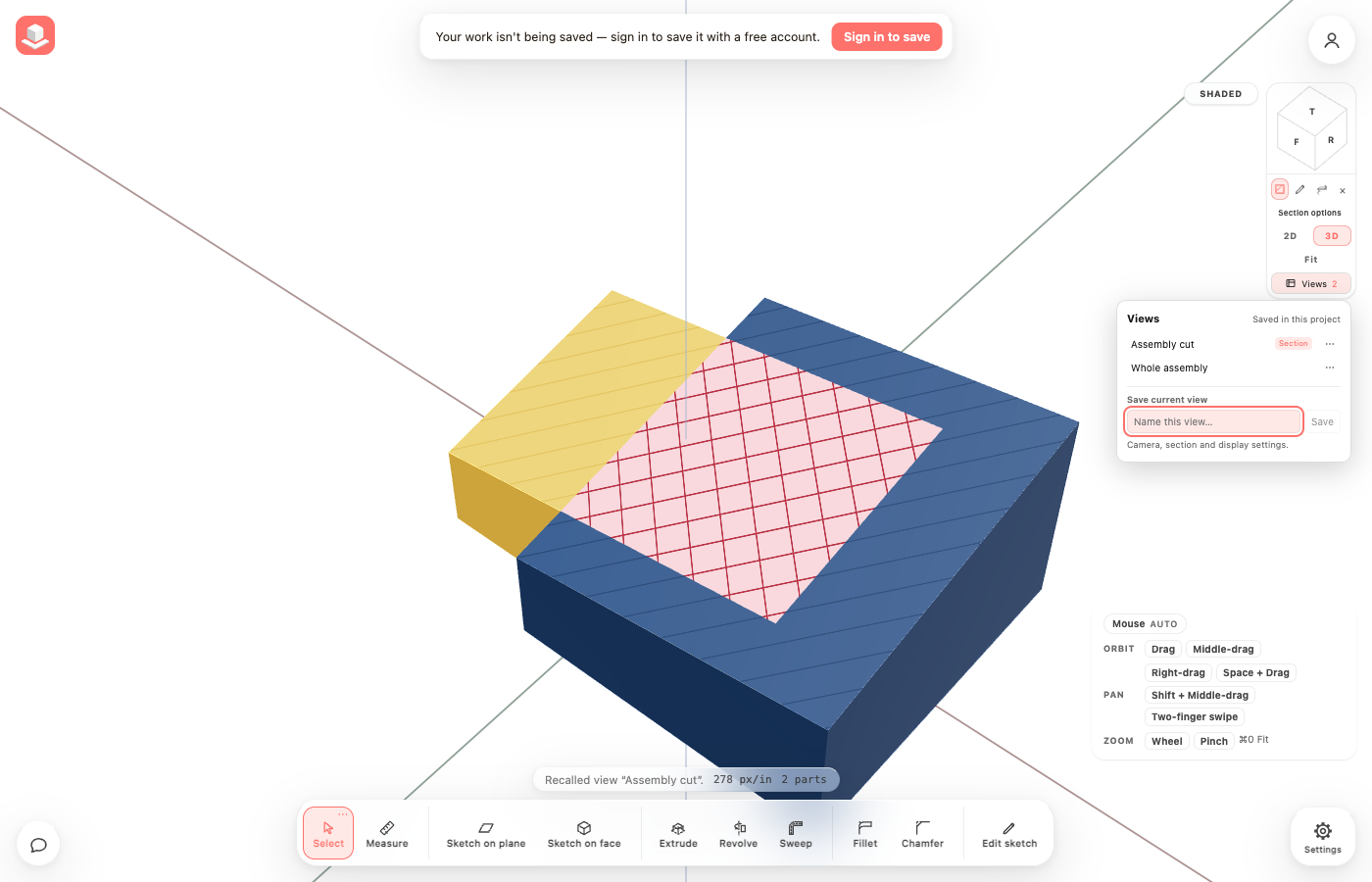
Save useful views, keep working inside a confirmed section, spot where parts overlap, and watch models load.
Spotlight
Your useful angles, one click away
Views sits below Fit, with named camera and section presets saved in the project.
Name a view and save it, then click its name to return to it.
See a compact progress bar and the current feature and part while native models open, with geometry appearing as the model loads and camera navigation available throughout.
Cancel a model opening or switch files without an older load replacing your next choice; unfinished geometry stays out of your saved document and undo history.
The Views panel uses smaller text and compact inputs to match the surrounding viewport controls.
Finish whole boundaries, merge neighboring bore mouths at the requested size, and review checked results before applying them. Watch 248 editable features in motion when you press Play.
In motion
108 finishes, 48 splines, one editable assembly
Orbit around AURELIA, a concept turbine built from 248 saved features, including 48 fillets and 60 chamfers. Each of its 68 solids passes complete independent intersection checks.
Actual CAD Modeler viewport recording. The editable saved project reopens with all 108 finishes completed; individual-solid validation does not certify assembly interference or manufacturability.
Overlapping circular bore fillets and chamfers merge automatically at the requested size, including mixed finishes and whole-face perimeter selections.
Editing an earlier fillet or chamfer previews the later features and blocks new downstream failures, including different failed edges that previously showed the same short warning.
Native bore rim and derived intersection edge finish previews use the applied model's detail, so the preview and Confirm agree.
Choose a conversion from the homepage, preview your model or drawing, and download a new format locally in your browser.
Spotlight
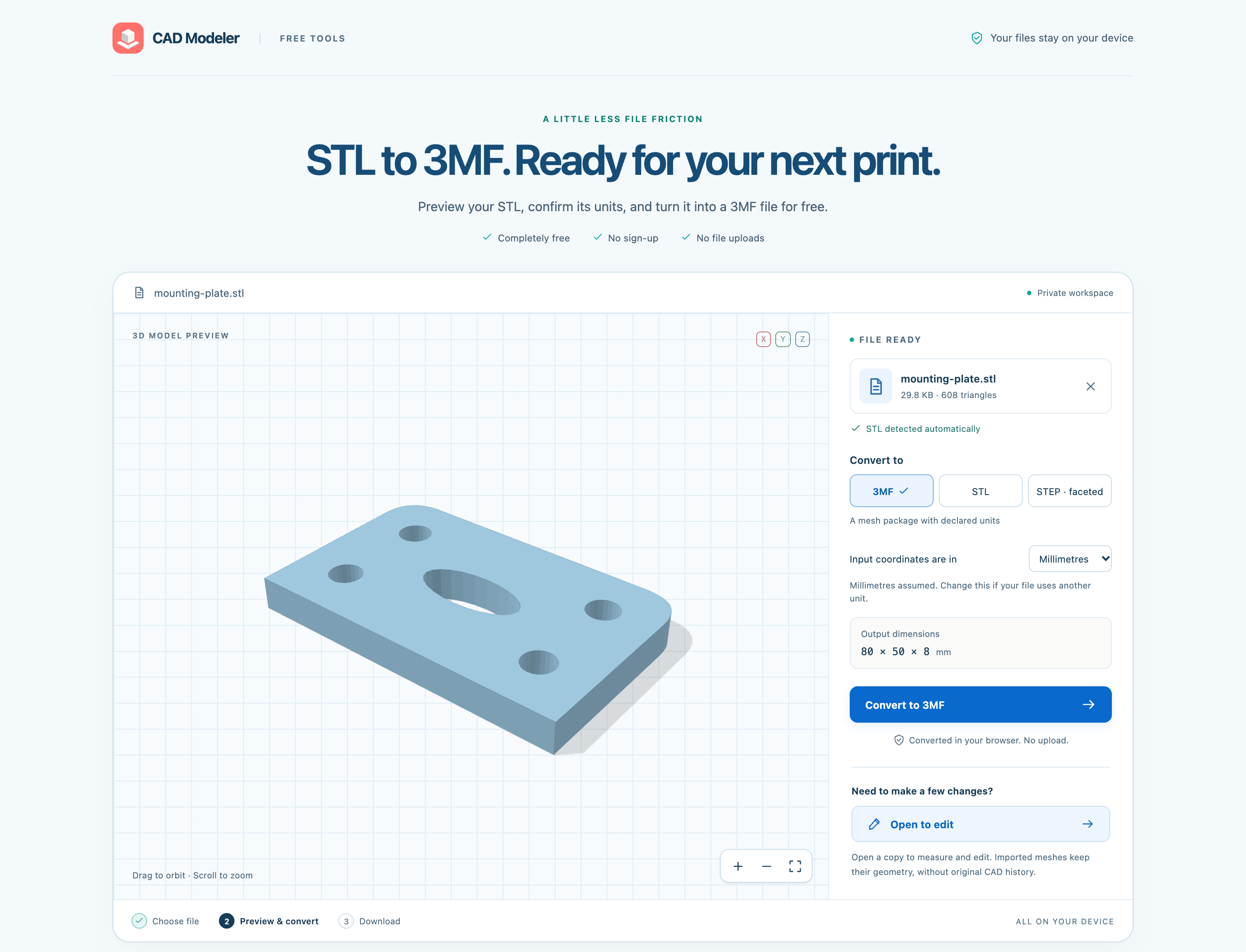
Preview your CAD file before converting
The actual STL to 3MF converter: inspect the model, check its units, choose an output and convert locally in your browser.
Find every supported file conversion in the homepage footer: STL to 3MF or faceted STEP, faceted STEP to STL or 3MF, and DXF to SVG, plus a general converter. Each opens a working public page with browser-side conversion and Open to edit.
Converter pages have their own search descriptions and permanent URLs; their instructions and homepage links are readable before JavaScript loads.
Drag in one file up to 20 MB, let the converter detect its contents, and preview the model or drawing before downloading. Confirm input units and any omitted geometry before export.
Pick points, edges or faces to inspect distances, face gaps and angles. A compact panel keeps the model visible on desktop and phones.
Spotlight
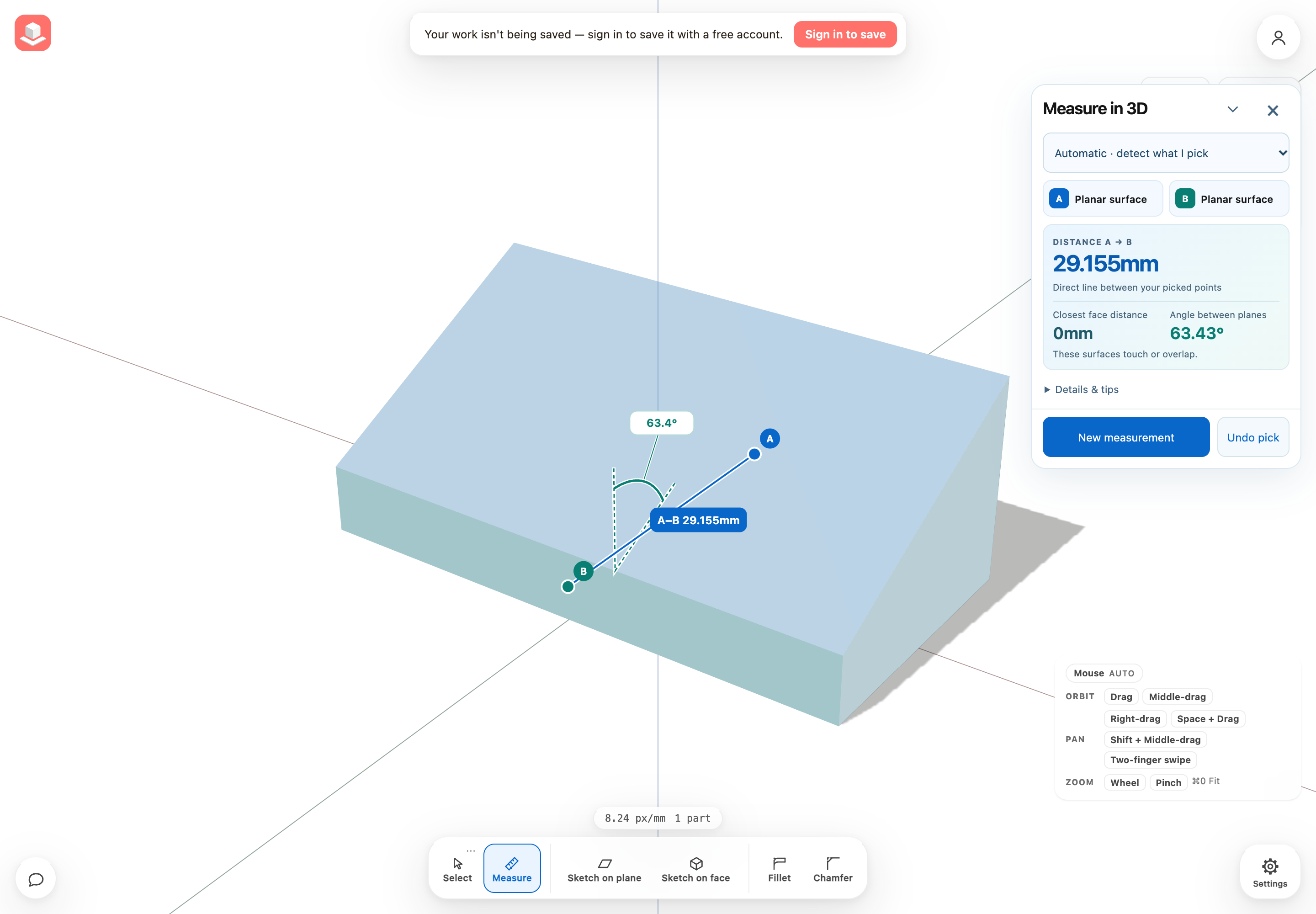
Distances and angles in a compact panel
Actual app measuring a sloped block: 29.155 mm between A and B, 0 mm between touching faces and a 63.43-degree plane angle. The compact panel puts face distance and angle side by side, with axis differences behind Details & tips.
Measure distances between points, edge segments, and surfaces in the 3D workspace, including angles between straight lines and planar surfaces, without changing your model.
Point measurements snap to vertices and edge midpoints, edge anchors stay at the click, and the panel displays picked-point X/Y/Z differences in the project’s units.
Undo pick, New measurement and Escape let you inspect another pair; editing the geometry clears the result instead of leaving stale measurements.
Inspect your models with color-matched sections and smoother cut edges, finish complex geometry with more predictable selections, and explore visual release guides with practical instructions.
Spotlight
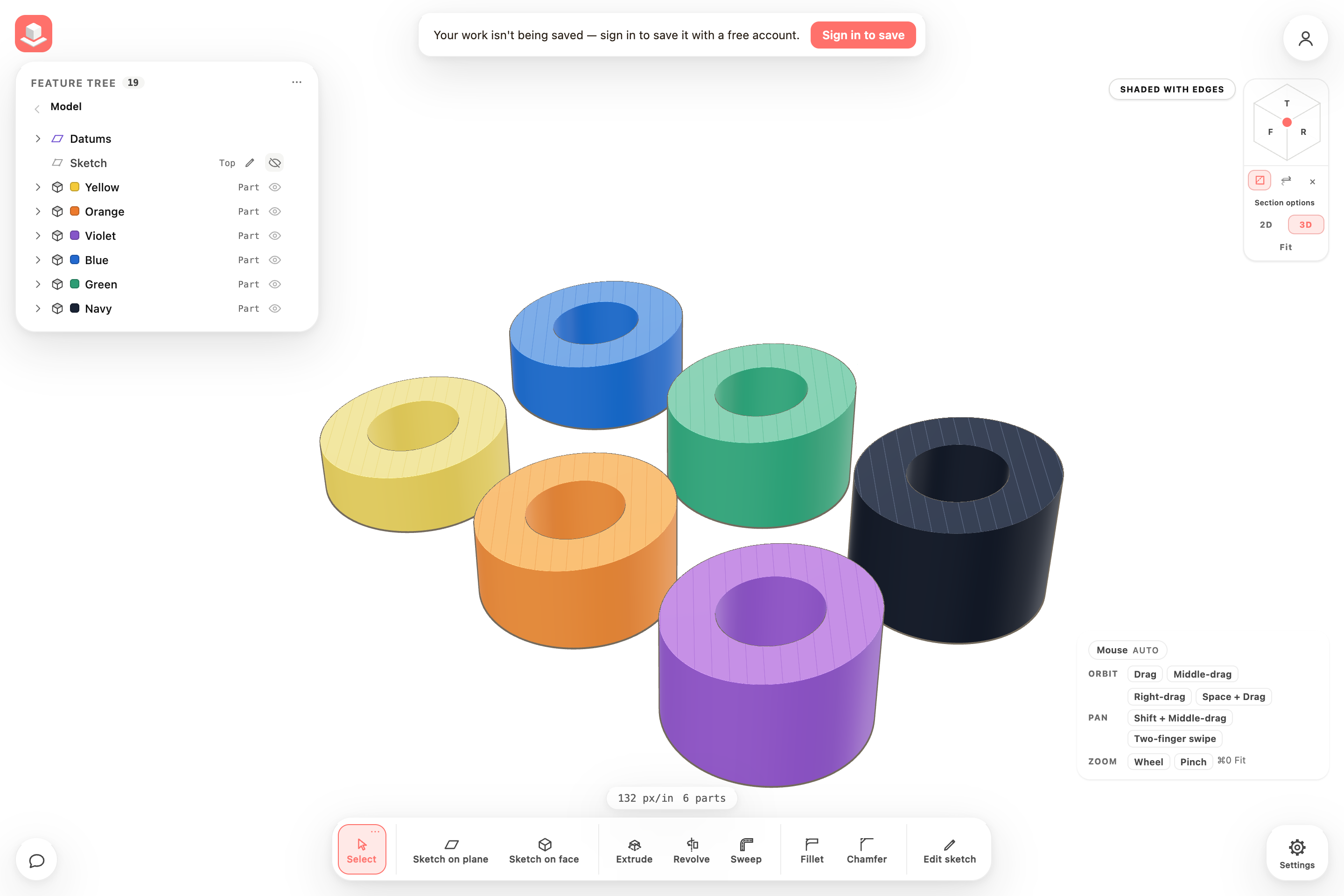
See inside. Keep your colors.
Cut faces keep the color and material of each part. Subtle hatching marks the material exposed by the section.
One section, six parts. Shown in Presentation with no surface selected.
What’s New now has a concise update feed and individual release pages with instructions, screenshots, videos, and direct links to examples.
What’s New can show spotlight images, interactive before-and-after comparisons, and playable videos with captions alongside release notes.
What’s New brings each release’s features and fixes together in grouped notes, with an optional introduction and selected visual highlights.
Saved cloud models and their available revisions now use persistent document storage; production refuses to start with temporary in-memory storage.
API keys can be limited to one saved project or cover all projects; the key list shows each key's access, and project keys cannot reach other projects or account controls
Joining sketch points preserves their horizontal/vertical alignment, spline attachments, tangent connections and circle-clearance dimensions
In 3D, Select can hold to one kind of answer: solid bodies, surfaces, or edges — hold the Select card or tap its corner to pick what a click is allowed to land on, a crowded model stops winning the click from the thing you aimed at, and a click on nothing lets the selection go, same as with All
Picking a feature in the tree no longer re-triangulates the whole model on every click — the highlight lands instantly on dense assemblies instead of pausing for up to a fifth of a second
Shadows redraw only when the light or the model actually changes, so hovering, selecting and panels no longer pay a second hidden render of the part
 BeforeAfter